NotebookLM Tags: Organize and Filter Your Notebooks
Add color-coded tags to your NotebookLM notebooks and quickly find the projects you need. NotebookPlus helps you categorize, search, filter, and manage your NotebookLM notebook library.
Organize your NotebookLM library without changing your existing notebooks.
Why Use Tags for NotebookLM?
As your NotebookLM library grows, finding the right notebook can become difficult.
You may have notebooks for:
- Research projects
- University courses
- Client work
- Writing projects
- Personal projects
- Business research
- Different topics and subjects
Instead of relying only on notebook names, tags give you another way to categorize your notebooks.
For example:
- Research
- Work
- Study
- Writing
- Clients
- AI
You can then use these categories to quickly filter your notebook library.
What Are NotebookLM Tags?
NotebookLM can organize individual sources with labels and categories. However, organizing an entire notebook library is a different problem.
NotebookPlus adds color-coded tags for your notebooks.
This lets you organize your NotebookLM library at the notebook level.
Think of it as two different layers:
Source labels → organize sources inside a notebook
Gemini Notebook / NotebookLM can label and categorize individual sources inside a notebook.
NotebookPlus Tags → organize notebooks across your library
NotebookPlus tags help you categorize, filter, and search entire notebooks in your library.
This makes tags especially useful when you have many separate NotebookLM notebooks for different projects or topics.
How NotebookPlus Tags Work
NotebookPlus adds a lightweight tagging system to your NotebookLM workflow.
Create Custom Tags
Create tags that match the way you work.
- Research
- Work
- Study
- Personal
- Client
- Important
Add Tags to Notebooks
Assign one or more tags to your NotebookLM notebooks. A single notebook can use multiple tags when it belongs to several categories.
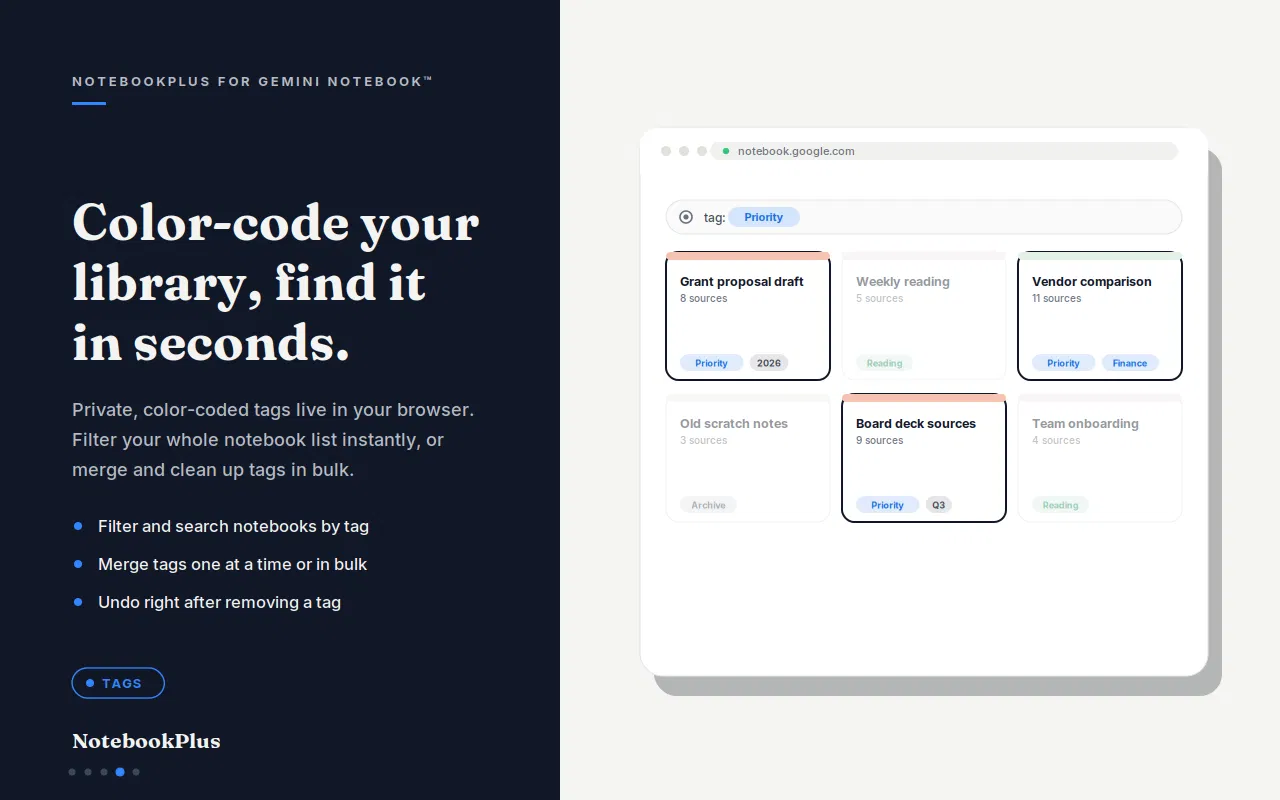
Filter Your Notebook Library
Click a tag to quickly view the notebooks associated with it. Instead of scrolling through your entire library, you can narrow the list to the notebooks you need.
Search Your Notebooks
Use tags together with notebook search to find projects faster.
Use Color-Coded Tags
Give your tags different colors to make categories easier to recognize visually.
How to Add Tags to NotebookLM Notebooks
Step 1 — Open NotebookLM
Open your NotebookLM workspace and view your notebook library.
Step 2 — Open NotebookPlus
Open the NotebookPlus tools and go to the Tags manager.
Step 3 — Create a Tag
Create a tag and choose a name and color that make sense for your workflow.
Step 4 — Assign the Tag
Select the NotebookLM notebooks you want to categorize and add the tag.
Step 5 — Filter Your Library
Select a tag to show the notebooks associated with that category.
You can create additional tags as your library grows.
NotebookLM Tag Examples
Different users can use tags in different ways.
For Students
Study
├── Biology
├── Mathematics
├── Computer Science
├── Exam
└── Research
You could use tags such as:
- Semester 1
- Semester 2
- Exam
- Research
- Important
For Researchers
Use tags to classify notebooks by research area or project status.
- Literature Review
- Active Research
- Archived
- Papers
- Competitors
- Reference
For Professionals
Organize notebooks by client, department, or project.
- Client A
- Client B
- Marketing
- Product
- Research
- Internal
For Writers and Creators
Organize research and content projects.
- Research
- Ideas
- Drafts
- Published
- YouTube
- Blog
Tags vs Folders vs Collections
NotebookLM organization becomes much easier when you understand what each tool is designed to organize.
| Feature | Organizes | Best For |
|---|---|---|
| Collections | Notebooks | Grouping notebooks into larger projects |
| NotebookPlus Tags | Notebooks | Flexible categories and filtering |
| NotebookPlus Source Folders | Sources | Organizing sources inside a notebook |
| NotebookLM Source Labels | Sources | Categorizing individual sources |
Collections
Use Collections when you want to group entire notebooks together.
For example:
Work → Marketing Notebook, Product Research Notebook, Competitor Notebook
NotebookPlus Tags
Use Tags when you want flexible categories that can overlap. This makes tags useful when a notebook belongs to multiple categories at the same time.
For example, one notebook could have:
- Research
- Important
- Client A
Source Folders
Use source folders when the problem is inside a specific notebook and you need to organize the individual sources.
For example:
Research Notebook → Papers, Websites, Interviews, Videos
Tags and Collections Work Together
Tags and Collections don't have to replace each other. They can be used together.
For example:
Collection: Client Projects
Inside it:
- Client A Research
- Client B Research
- Client C Research
Then use tags such as:
- Research
- Active
- Important
This gives you both a high-level organization system and a flexible filtering system. Collections can help you group related notebooks into broader categories such as Work, Research, Study, or Personal. See how to organize NotebookLM.
Manage Your Tags
Your NotebookPlus Tags manager is designed for users with larger notebook libraries.
Merge Tags
If you have created duplicate or overlapping tags, merge them into one category.
- Research
- Research Project
- Research Projects
can be consolidated into:
- Research
Bulk Manage Tags
Manage multiple tags without having to reorganize your entire library manually.
Undo Changes
If you accidentally remove a tag, NotebookPlus provides an immediate undo option.
Two-Pane Tag Manager
Use the tag management interface to browse your tags and manage the notebooks associated with them.
How Many Tags Should You Create?
There is no need to create a tag for every notebook.
A simple tagging system is usually easier to maintain.
Start with a few broad categories:
- Work
- Research
- Study
- Personal
Then add more specific tags only when they become useful.
For example:
Research → Academic, Market Research, Competitors
This keeps your notebook library organized without creating unnecessary complexity.
Who Should Use NotebookLM Tags?
Students
Use tags to organize notebooks by course, semester, exam, and research project.
Researchers
Use tags to distinguish active research, literature reviews, papers, and reference projects.
Professionals
Use tags for clients, departments, projects, and work status.
Writers
Use tags to separate research, drafts, ideas, and published projects.
Heavy NotebookLM Users
If you have dozens or hundreds of notebooks, tags provide a fast way to filter your library.
Need to organize the sources inside a specific notebook? Learn about NotebookLM Source Folders.
Need to import many sources first? Learn how to bulk import sources into NotebookLM.
Organize your notebooks with tags, then use Prompt Manager to keep your most-used NotebookLM prompts organized.
Want to organize your entire NotebookLM workflow? Read our guide to how to organize NotebookLM with Collections, Tags, Folders, and Prompts.
Explore NotebookPlus
Frequently Asked Questions
Organize Your NotebookLM Library with Tags
Stop scrolling through a long list of notebooks.
Create your own categories, color-code your projects, and quickly filter your NotebookLM library with NotebookPlus.
Start organizing your notebooks today.