NotebookLM Bulk Import: Import Multiple Sources at Once
Add multiple sources to NotebookLM faster with NotebookPlus. Bulk import URLs, web pages, and other supported sources without adding them one by one.
No complicated setup. Just install the extension and start importing.
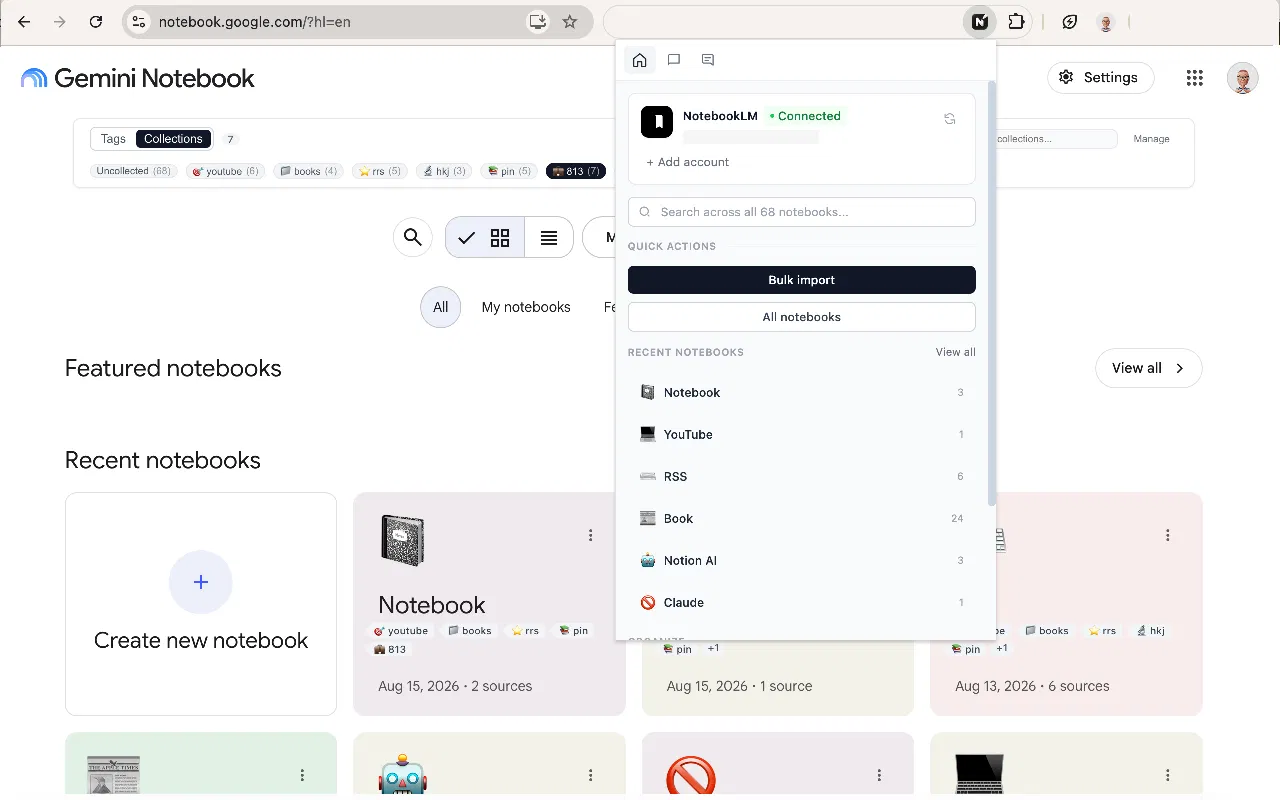
What Is NotebookLM Bulk Import?
NotebookLM is useful for working with documents, websites, videos, and other sources. But when you need to add many sources to a notebook, adding them one at a time can become repetitive.
NotebookLM bulk import refers to a workflow for adding multiple supported sources to a notebook more efficiently.
Instead of repeating the same process for every source, a bulk import workflow lets you prepare multiple sources and process them together.
NotebookPlus adds a convenient bulk import workflow to your NotebookLM experience, helping you manage multiple sources more efficiently.
Why Bulk Import Sources into NotebookLM?
Adding a few sources to NotebookLM is easy. But research projects often involve dozens or even hundreds of useful resources.
For example, you might have:
- A list of research papers
- Dozens of web pages
- Multiple articles
- YouTube videos
- Project documentation
- Reference materials
Adding each source individually can take unnecessary time.
With a bulk import workflow, you can prepare multiple sources together and spend less time repeating the same steps.
Save Time
Reduce repetitive source-by-source importing.
Manage Large Research Projects
Work with larger collections of references more efficiently.
Keep Your Workflow Organized
Import sources into the notebook you are working on without constantly switching between different tasks.
How to Import Multiple Sources into NotebookLM
There are several ways to add sources to NotebookLM. For a small number of sources, adding them manually may be enough. If you regularly work with many sources, a bulk import workflow can make the process much faster.
Method 1: Add Sources Manually
The standard workflow is straightforward:
- Open NotebookLM.
- Open the notebook where you want to add sources.
- Select the option to add sources.
- Choose or provide a supported source.
- Repeat the process for additional sources.
This approach works well when you only need to add a few sources.
For larger source collections, repeating the same process can become time-consuming.
Method 2: Use NotebookPlus Bulk Import
NotebookPlus provides a dedicated bulk import workflow for NotebookLM users.
Instead of processing every source individually, you can prepare multiple sources in one workflow and add them to your notebook more efficiently.
Learn How NotebookPlus Bulk Import WorksBulk Import Sources with NotebookPlus
NotebookPlus adds a practical bulk import workflow to NotebookLM.
It is designed for users who regularly work with multiple sources and want to spend less time repeating the same import process.
Import Multiple Sources
Prepare multiple supported sources and process them through one streamlined workflow.
Choose Your Notebook
Select the NotebookLM notebook where you want to add your sources.
Reduce Repetitive Work
Spend less time repeating the same source-import steps.
Keep Your Research Moving
Get your sources into NotebookLM faster so you can focus on reading, analyzing, and working with your information.
How to Bulk Import Sources with NotebookPlus
1. Install NotebookPlus
Install the NotebookPlus Chrome extension and open NotebookLM.
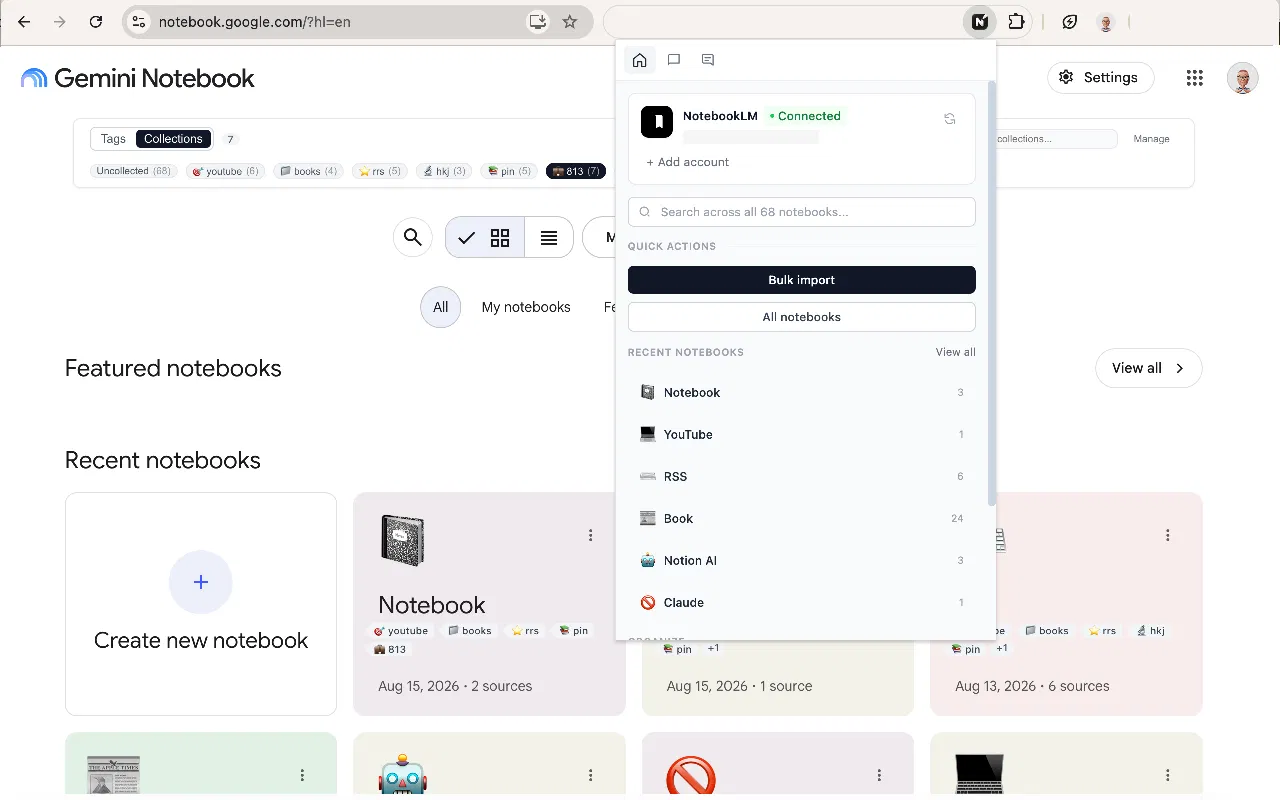
2. Open Bulk Import
Open the NotebookPlus tools and select Bulk Import.
3. Add Your Sources
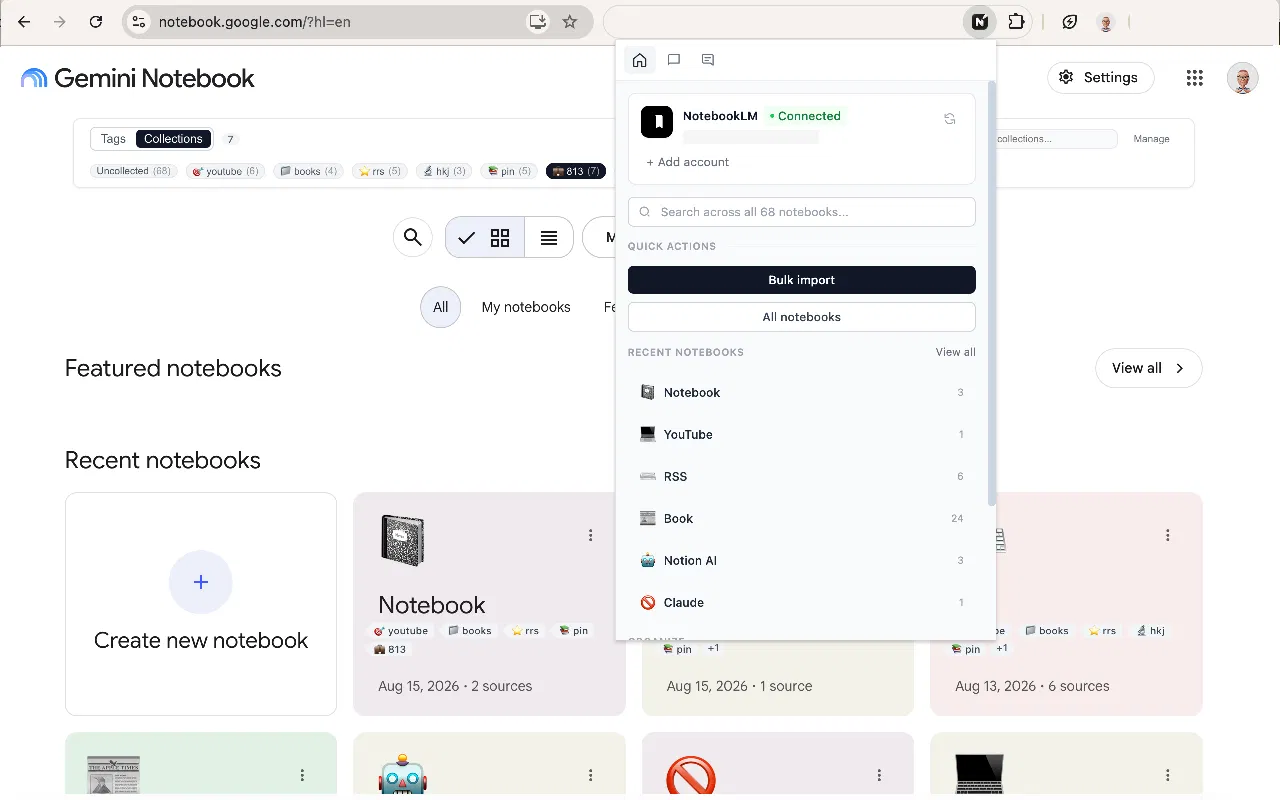
Add the supported sources you want to import into your NotebookLM workflow.
4. Import
Select your destination notebook and start the import process.
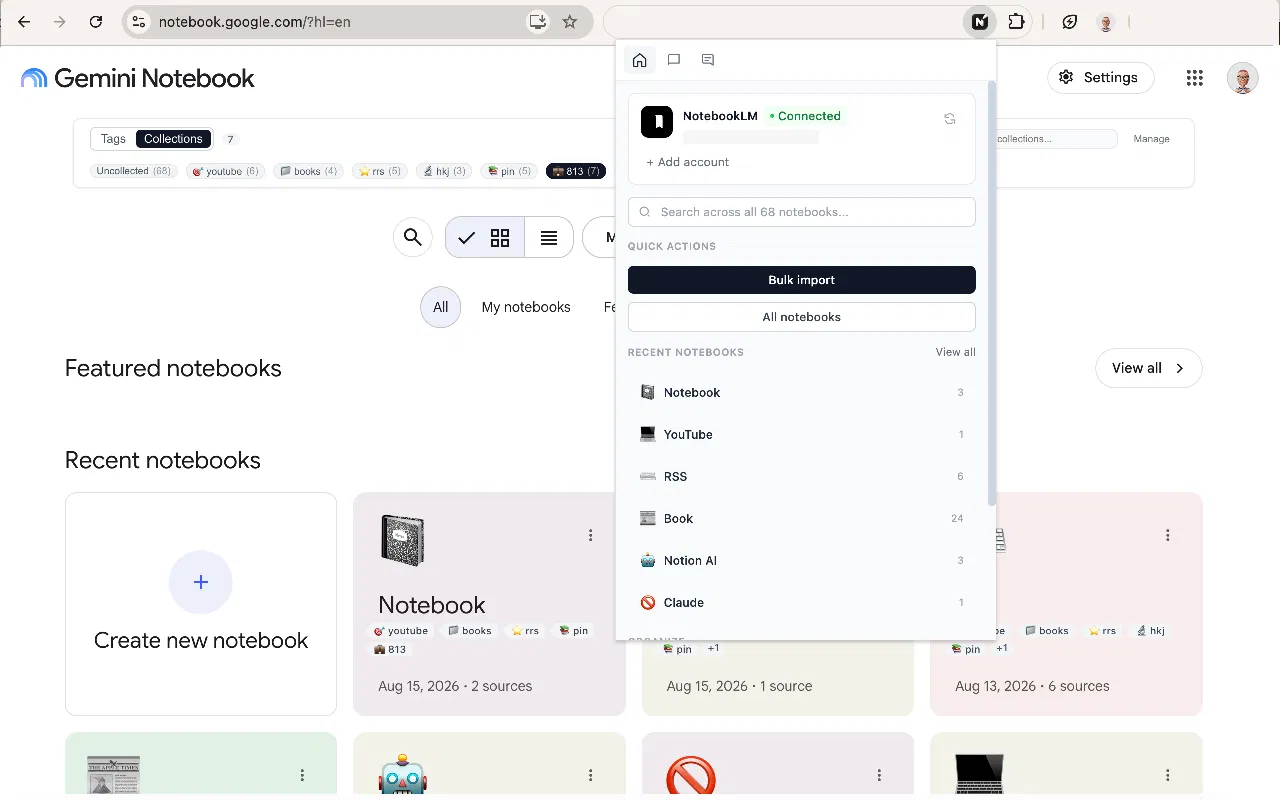
That's it. Your sources can now be added through a single streamlined workflow.
What Can You Import into NotebookLM?
NotebookPlus helps you work with multiple supported sources through a streamlined bulk import workflow.
Web URLs
Import multiple web URLs instead of processing each URL individually.
Web Pages
Collect multiple web resources for your NotebookLM research workflow.
YouTube Sources
Add supported YouTube sources more efficiently when working with multiple videos.
Other Supported Sources
Use the source types supported by your current NotebookLM and NotebookPlus workflow.
NotebookLM Bulk Import vs Manual Import
| Task | Manual Workflow | NotebookPlus |
|---|---|---|
| Add one source | ✓ | ✓ |
| Add multiple sources | Repetitive | ✓ |
| Bulk source workflow | — | ✓ |
| Select destination notebook | ✓ | ✓ |
| Reduce repetitive steps | — | ✓ |
Who Is NotebookLM Bulk Import For?
NotebookPlus can be especially useful if you regularly work with large collections of information.
Students
Import course materials, reading lists, research resources, and other study materials into your NotebookLM workflow.
Researchers
Work with collections of papers, articles, websites, and reference materials more efficiently.
Writers
Collect research sources and references before starting a writing project.
Professionals
Organize information from multiple sources for projects, reports, research, and analysis.
Have a large collection of sources? Learn how to organize NotebookLM sources with folders.
Want to organize your NotebookLM library? Learn how to use tags to categorize your notebooks.
After importing your sources, you can save reusable instructions with NotebookLM Prompt Manager.
Looking for a complete NotebookLM organization system? Read our guide on how to organize NotebookLM.
NotebookLM Guides & Tools
Explore NotebookLM Tools & Guides
NotebookLM Bulk Import
Import multiple sources faster.
NotebookLM Folders
Organize sources inside your notebooks.
NotebookLM Tags
Categorize and filter your notebooks.
NotebookLM Prompt Manager
Save and reuse your favorite prompts.
How to Organize NotebookLM
Learn how to organize NotebookLM with folders, tags, collections, and prompts.
Frequently Asked Questions
Import Your NotebookLM Sources Faster
Stop repeating the same import process for every source.
Use NotebookPlus to streamline your NotebookLM workflow and work with multiple sources more efficiently.
Get started in minutes.