NotebookLM Folders: Organize Your Sources
Keep your NotebookLM sources organized with folders. Group PDFs, links, videos, and other sources by topic, project, or research stage with NotebookPlus.
Organize your sources without changing the way you use NotebookLM.
Why Organize Your NotebookLM Sources?
A NotebookLM notebook can contain many different types of sources, including documents, websites, videos, and other reference materials.
As a project grows, finding the right source can become more difficult.
For example, a research notebook might contain:
- Research papers
- Books and reports
- Reference websites
- YouTube videos
- Interview transcripts
- Project documents
Keeping everything in one flat source list can make large notebooks harder to manage.
Source folders give you a simple way to group related materials together.
Organize by Topic
Keep sources about the same subject together.
Organize by Project
Separate research materials for different projects.
Organize by Research Stage
Create folders for references, drafts, background research, and final materials.
Find Sources Faster
Spend less time scrolling through a long source list.
Does NotebookLM Have Folders?
NotebookLM provides ways to organize notebooks, including Collections. However, organizing the individual sources inside a notebook is a different problem.
A notebook may contain dozens of PDFs, websites, videos, and other sources. NotebookPlus adds folders specifically for organizing these sources within each notebook.
Think of it as two different levels of organization:
Collections → Organize notebooks
Group entire notebooks by project, subject, client, or another high-level category.
Source folders → Organize sources inside a notebook
Keep PDFs, links, videos, and other sources structured inside the notebook you are working in.
This makes it easier to keep a large NotebookLM project structured from the top level down to individual sources.
Organize NotebookLM Sources with NotebookPlus
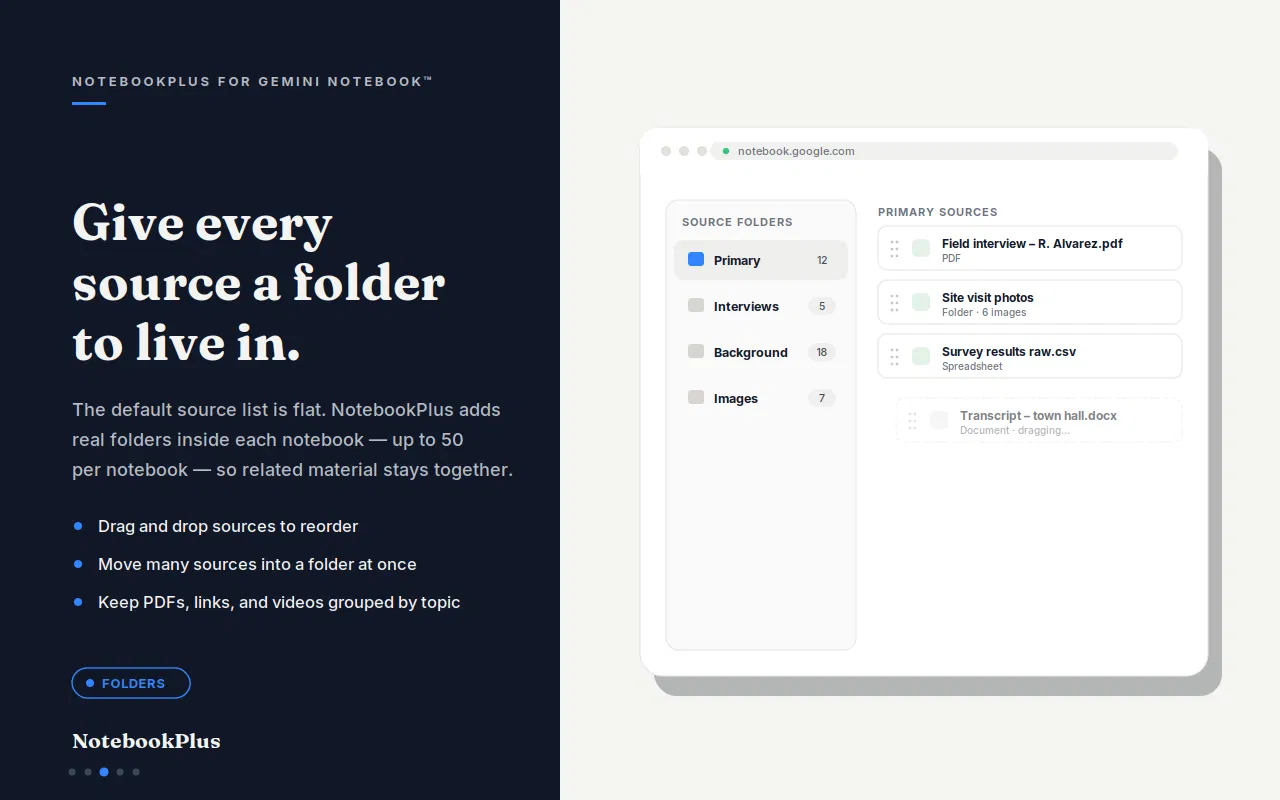
NotebookPlus adds source folders directly inside your NotebookLM workflow.
Create folders for different topics, projects, or types of research materials, then move your sources into the appropriate folder.
Create Source Folders
Create folders within a notebook to build a structure that matches your project.
Move Sources in Bulk
Select multiple sources and move them to a folder instead of organizing them one by one.
Drag and Drop
Reorder folders and move sources with a simple drag-and-drop workflow.
Keep Related Sources Together
Group PDFs, links, videos, and other supported sources according to the way you work.
Organize Up to 50 Source Folders
NotebookPlus supports up to 50 source folders per notebook.
How to Organize Sources with NotebookLM Folders
Step 1 — Open a Notebook
Open the NotebookLM notebook containing the sources you want to organize.
Step 2 — Open NotebookPlus
Open the NotebookPlus tools inside your NotebookLM workspace.
Step 3 — Create a Folder
Create a new source folder and give it a name based on your topic, project, or workflow.
Step 4 — Move Sources
Select one or more sources and move them into the appropriate folder.
Step 5 — Organize Your Sources
Continue creating folders and moving sources until your notebook has a structure that works for your project.
You can also drag and drop folders to reorder them.
What Can You Organize with NotebookLM Folders?
Use source folders to group different types of research materials inside your notebooks.
PDFs
Keep research papers, reports, books, and other PDF sources together.
Web Pages
Group websites and online references by topic.
Videos
Keep related YouTube and other supported video sources in the same folder.
Project Documents
Organize project-specific materials separately from general references.
Research Materials
Create dedicated folders for literature reviews, background research, data sources, and reference materials.
NotebookLM Folder Organization Examples
Source folders work inside a single notebook. Use a structure that matches how you already research, study, or write.
By topic
A literature-review notebook might use folders such as Core papers, Related work, and Methods so each cluster of sources stays together.
By project
Keep client, course, or campaign materials in separate folders when one notebook holds more than one workstream.
By research stage
Create folders for background research, working sources, and final materials so you can see what is still in progress.
By source type
Group PDFs in one folder, web references in another, and videos in a third when that is how you scan a notebook.
Folders vs Collections vs Tags
NotebookPlus provides several ways to organize your NotebookLM workflow. Each one works at a different level.
| Feature | Organizes | Best For |
|---|---|---|
| Collections | Notebooks | Grouping entire projects |
| Folders | Sources | Organizing materials inside a notebook |
| Tags | Notebooks | Categorizing notebooks across topics |
Collections
Use Collections when you want to group entire notebooks by project, subject, client, or other high-level categories.
Source Folders
Use folders when you want to organize the sources inside a specific notebook.
Tags
Use tags when you want to add flexible categories to notebooks and quickly filter your library.
Together, these tools give you multiple levels of organization for a growing NotebookLM workspace. Need to organize your entire NotebookLM library? Learn more about NotebookLM Tags. Collections can help you group related notebooks into broader categories — see how to organize NotebookLM.
Move Multiple NotebookLM Sources at Once
Organizing a large notebook doesn't have to mean moving every source individually.
NotebookPlus lets you select multiple sources and move them together.
For example, you could select:
- 10 research papers
- 5 reference websites
- 8 videos
and move them into the appropriate folder in one workflow.
This is especially useful when reorganizing an existing notebook with a large number of sources.
Who Are NotebookLM Folders For?
Students
Keep lecture materials, textbooks, assignments, and research papers organized by subject.
Researchers
Separate academic papers, reference materials, interviews, and background research.
Writers
Keep research, references, competitor materials, and project sources organized.
Professionals
Organize reports, project documents, market research, and business references.
Heavy NotebookLM Users
If your notebooks contain dozens of sources, folders can make large source libraries easier to manage.
Need to organize your entire NotebookLM library? Learn more about NotebookLM Tags.
Working with a large number of sources? Learn how to bulk import sources into NotebookLM with NotebookPlus.
Once your sources are organized, use NotebookLM Prompt Manager to save reusable research prompts.
Folders are only one part of a larger organization system. See our complete guide to organizing NotebookLM.
Explore NotebookPlus
NotebookLM Bulk Import
Import multiple sources
NotebookLM Folders
Organize sources inside notebooks
NotebookLM Tags
Categorize your notebooks
NotebookLM Prompt Manager
Save and reuse prompts
How to Organize NotebookLM
Complete organization guide
Frequently Asked Questions
Organize Your NotebookLM Sources
Stop scrolling through a long list of sources.
Create folders, group related materials, and keep your NotebookLM projects organized with NotebookPlus.
Start organizing your sources today.